Electrial Connections
Figure 16 shows the minimum network configuration for use of the VIM-303 camera with a UR Cap. The camera is connected to the robot via a PoE switch. The system can be stand-alone or can be connected to a network.
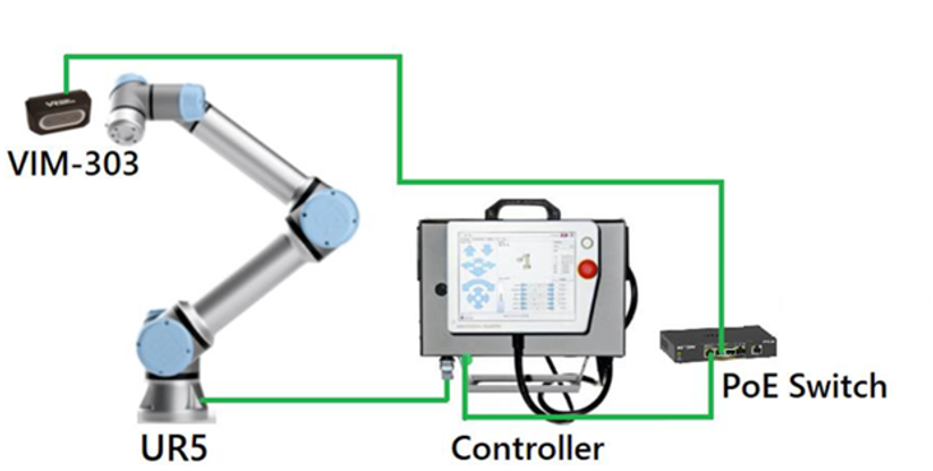
Figure 41: Network Connection for use with UR Cap
The Linovision POE-Switch0504GD (Figure 42) comes with the Complete Kit. It can be installed in the Universal Robots controller cabinet and be powered by the controller (Figure 43). Other PoE switch brands that may be used include Netgear GS305P and MokerLink IND-G041GP.
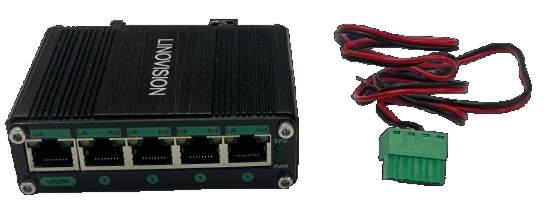
Figure 42: Linovision POE-Switch0504GD
Connecting the Linovision PoE to the Robot Controller
Figure 43 shows how the Linovision PoE switch can be powered from the Universal Robots controller. Begin this operation with the robot powered off. Connect the red (24V) line from the PoE switch to the 24V signal yellow terminal connector block and the black (0V) line from the PoE switch to the 0V signal yellow terminal connector block.
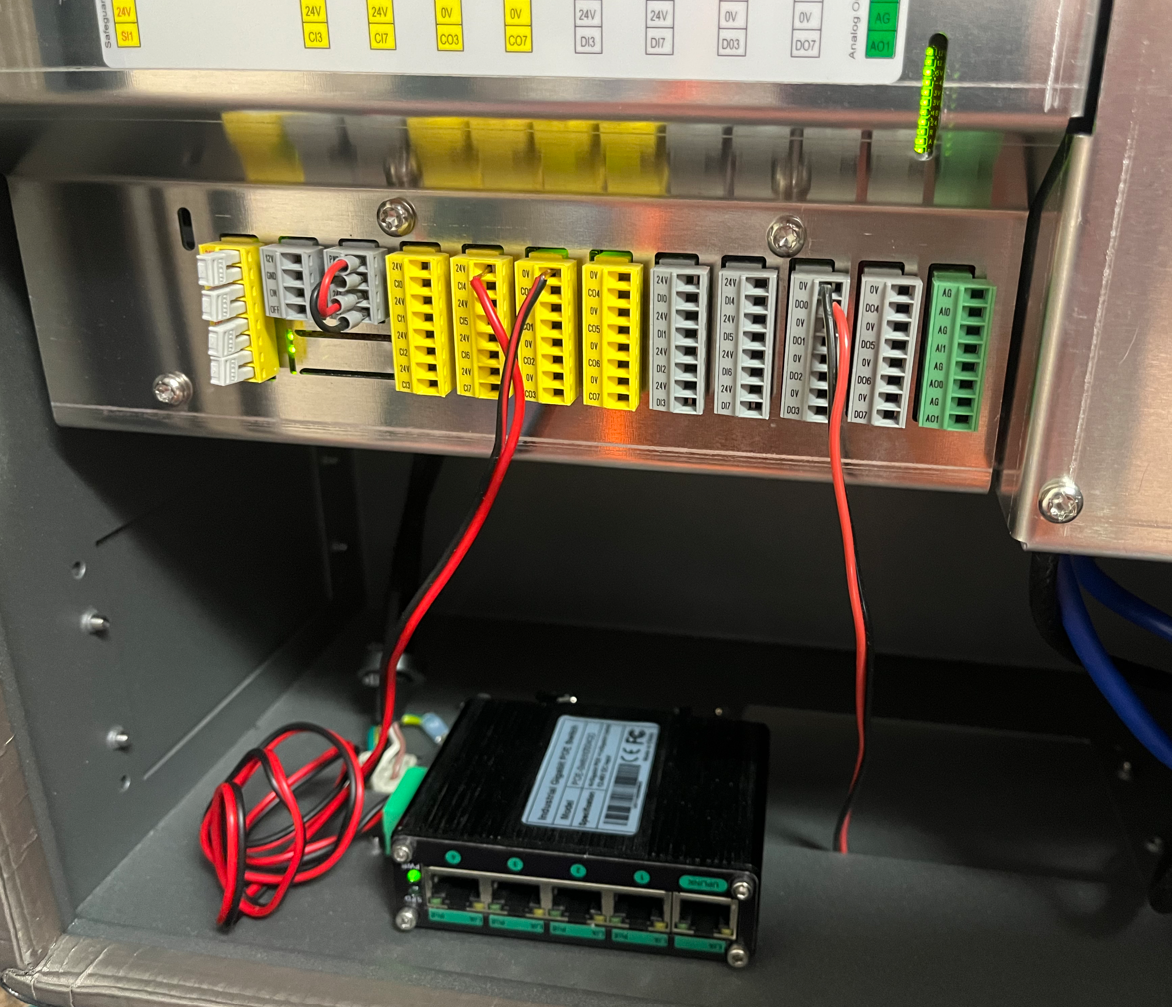
Figure 43: PoE switch installed in cabinet
Plug Devices into PoE Switch
Plug the supplied Ethernet cable from any port on the PoE switch to the Ethernet network output of the Universal Robots controller. Next, plug the camera’s cable into any of the powered ports of the PoE switch.