
Home
Task Menu
The first menu that the operator will see is the Task Menu. This is used by the operator of a VIM-303 workcell to select tasks (programs) to run. The first time the camera is used, there will be no programmed tasks, and the page will indicate that the Configure gear must be pressed by the Programmer to create new tasks (Figure 2). If tasks (Blockly programs) have been created, they will show up on the task menu as green buttons labeled with the filename of the associated Blockly program (Figure 3).
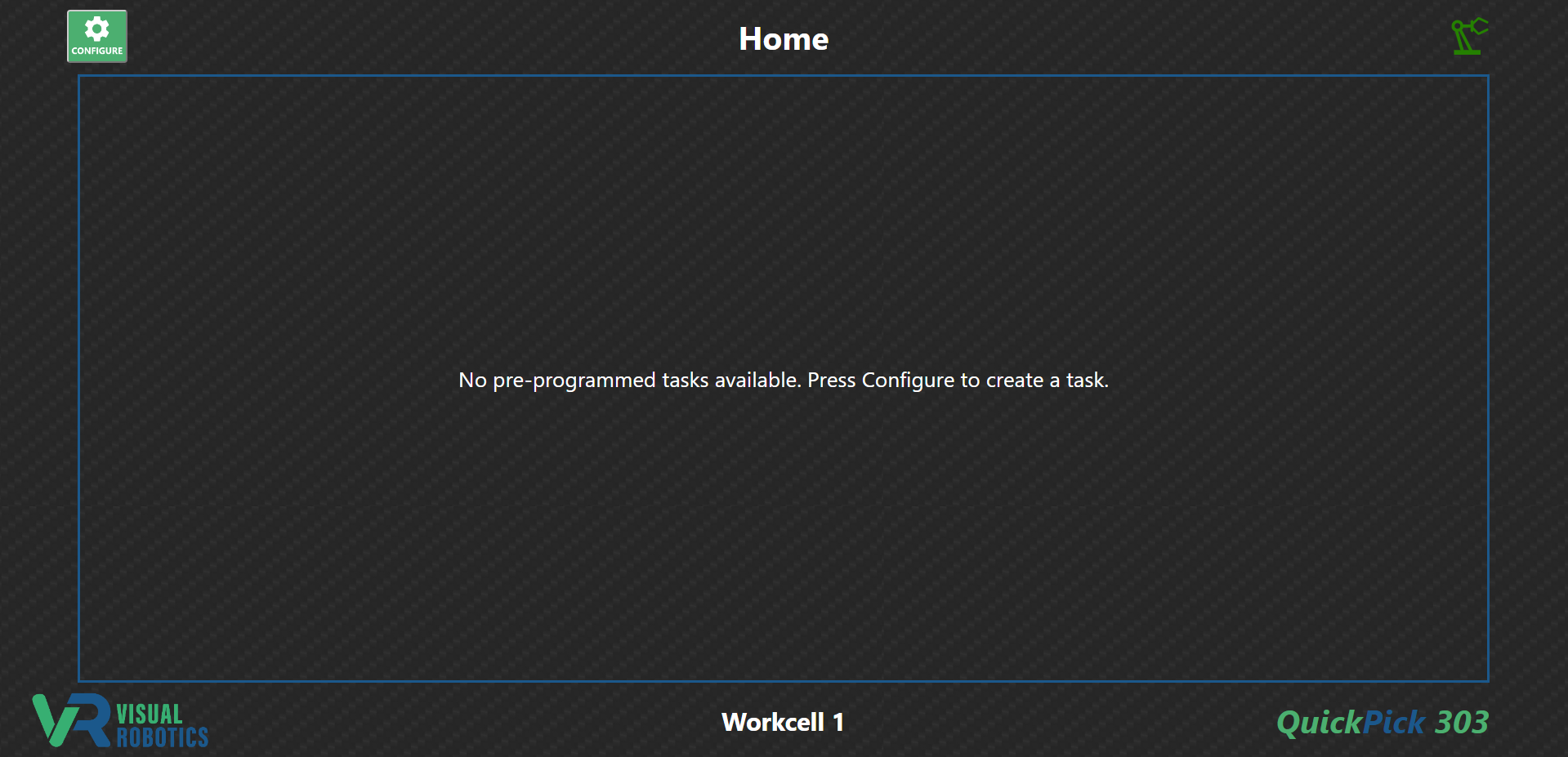
Figure 2: Task Menu with no tasks
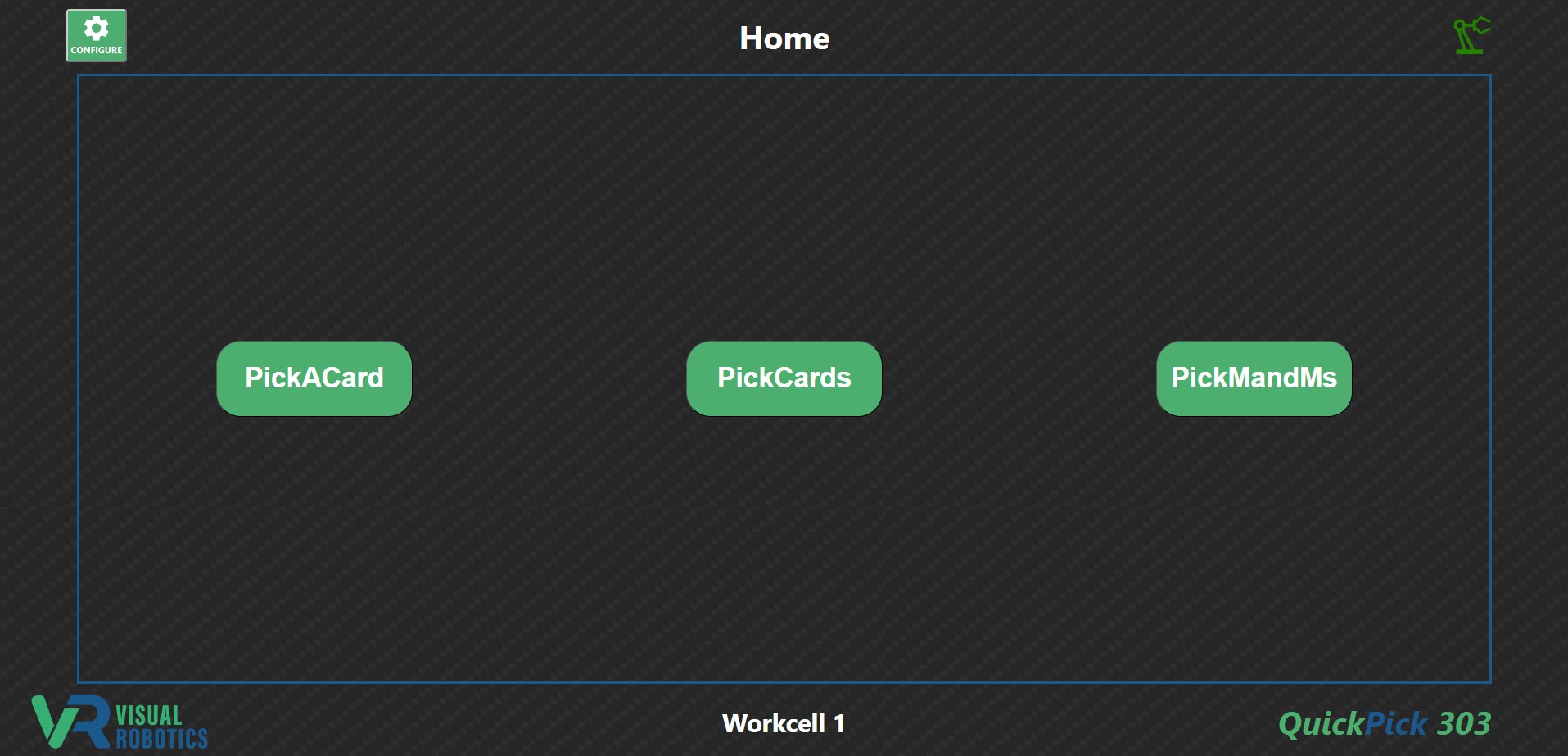
Figure 3: Task Menu with programmed tasks (Blockly programs)
The Programmer is able to organize the appearance of the Task Menu for the operator by creating Folders, which may contain tasks and/or other folders. Tasks and folders can be hidden, for example, to hide obsolete versions of tasks. For example, Figure 4 shows the menu tree from the Task Menu Editor (described in the programming section), which is used by the Programmer to organize the appearance of the Task Menu with a folder called Cards containing the tasks PickACard and PickCards.
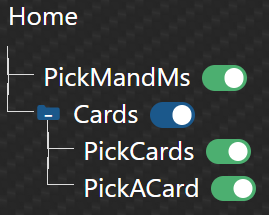
Figure 4: Task Menu Editor menu tree
Figure 5 shows the Task Menu when configured by the Programmer as shown in Figure 4. The task PickMandMs and folder Cards appear at the home screen. If the operator presses the Cards folder, the two tasks PickCards and PickACard are shown. The operator can press the blue up-arrow button to leave the Cards folder to the Home level.
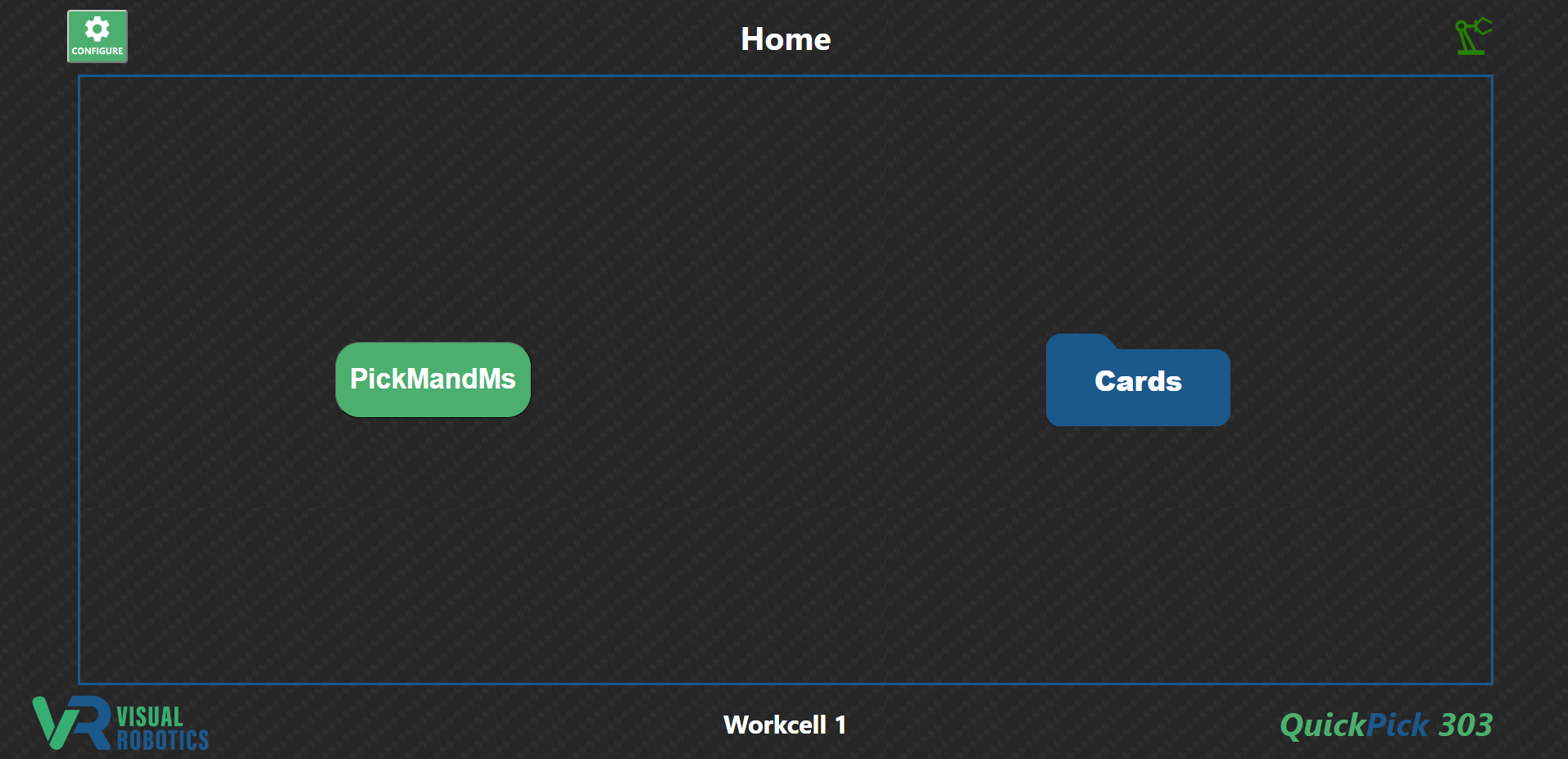
Figure 5: Task Menu with a subfolder
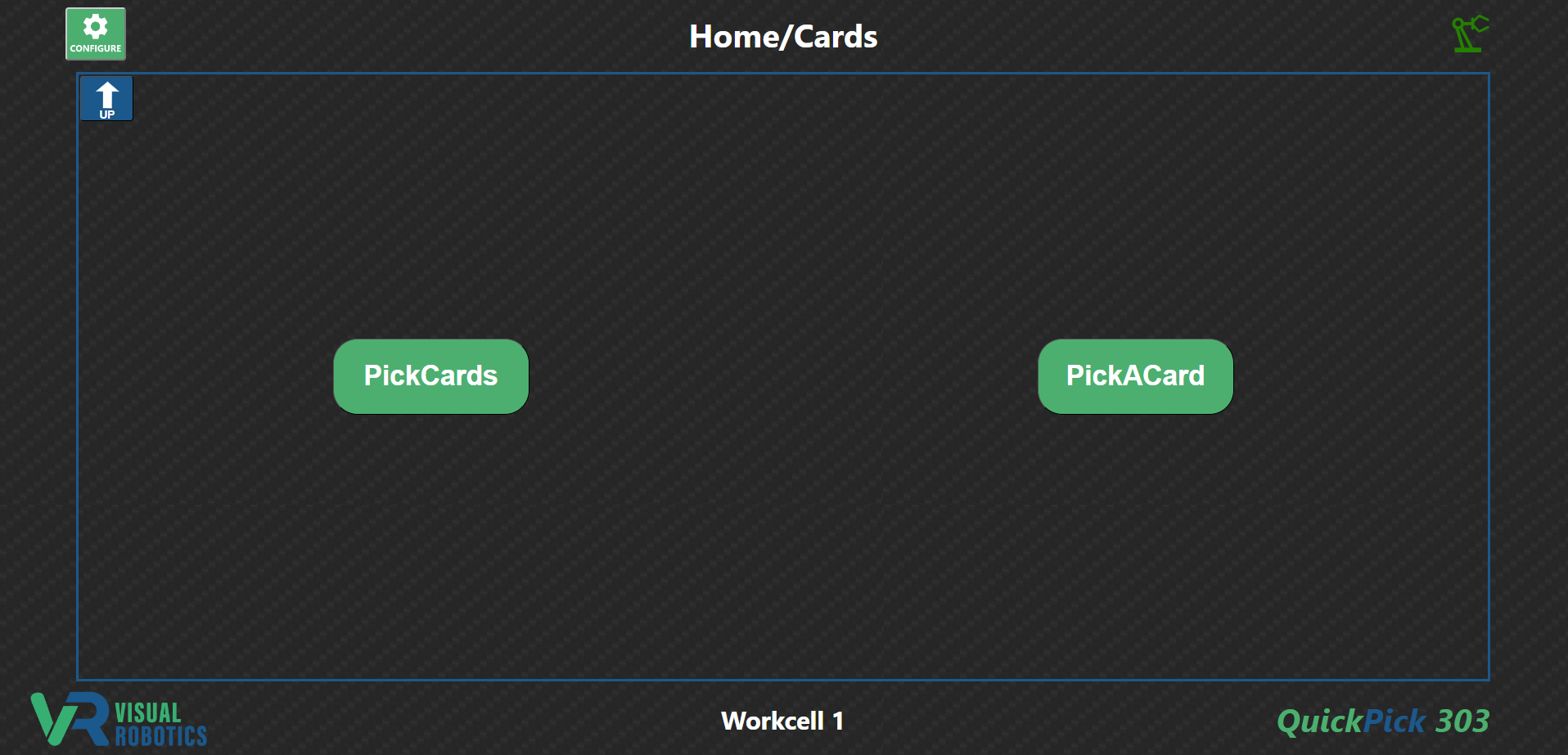
Figure 6: Clicking into a subfolder
When an operator presses one of the green task buttons, such as the PickCards button, the task is loaded and is prepared to be executed. A green Start button appears, along with a grayed-out stop button (Figure 7). When the operator presses the Start button, the task starts executing. The start button then is grayed out, and the red Stop button appears while the task is executing (Figure 8). When the task completes, the button will change to show the green Start button. If the operator wishes to stop the program before completion, they may press the Stop button, and the task will execute whatever steps it may have been programmed to execute when the Stop button is pressed. The task then completes and the green Start button appears.

Figure 7: Task Start Button
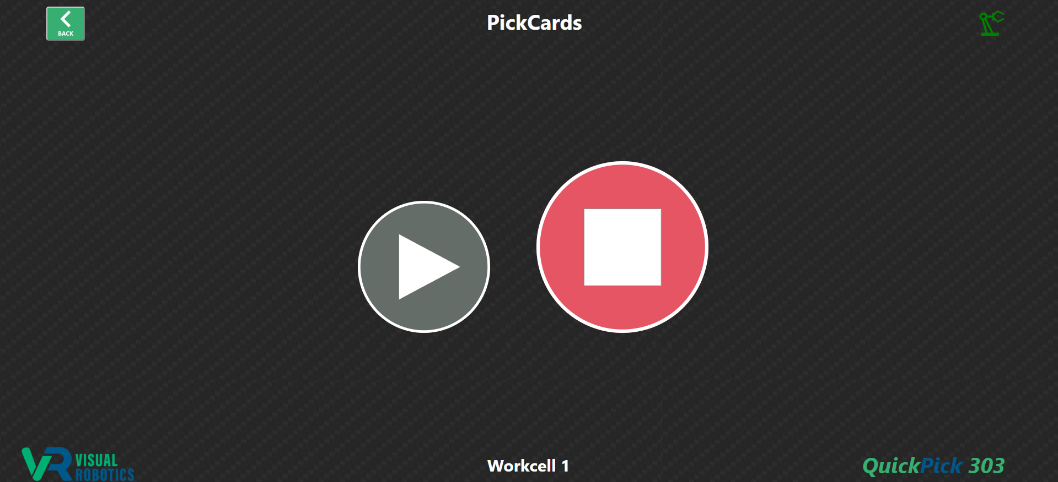
Figure 8: Task Stop Button