Test Your Program
Your program is now complete. On the Waypoints tab select Pick Zone and press Move to move the camera back to the beginning. Press the Show Objects button to see the annotation from the camera, indicating whether the box has been detected. Move the box within the field of view of the camera and confirm that the camera sees the box (Figure 14). You are now ready to start.
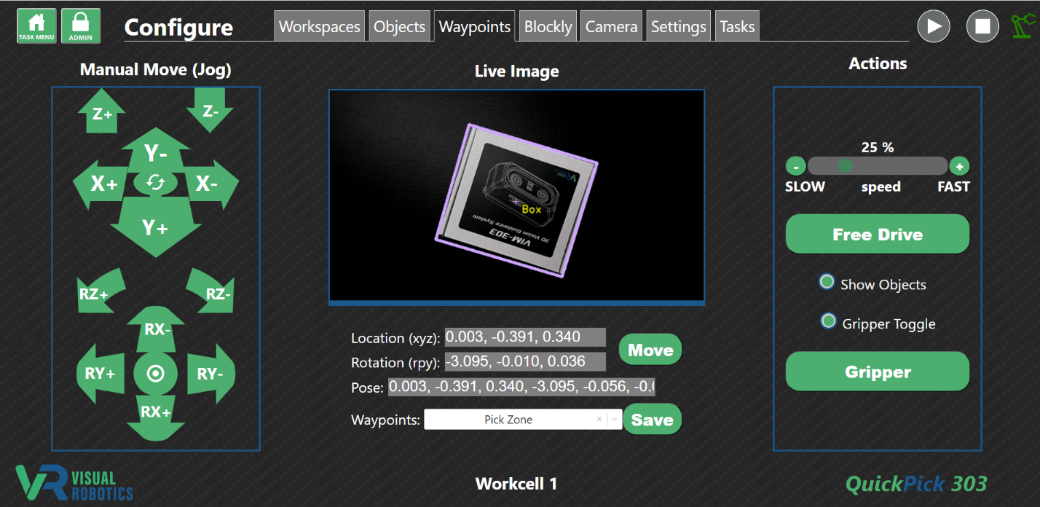
Figure 14: Ready for first pick
Press the Play button on the Waypoints tab (Figure 15). The robot will pick the box and place it at the Place Zone.
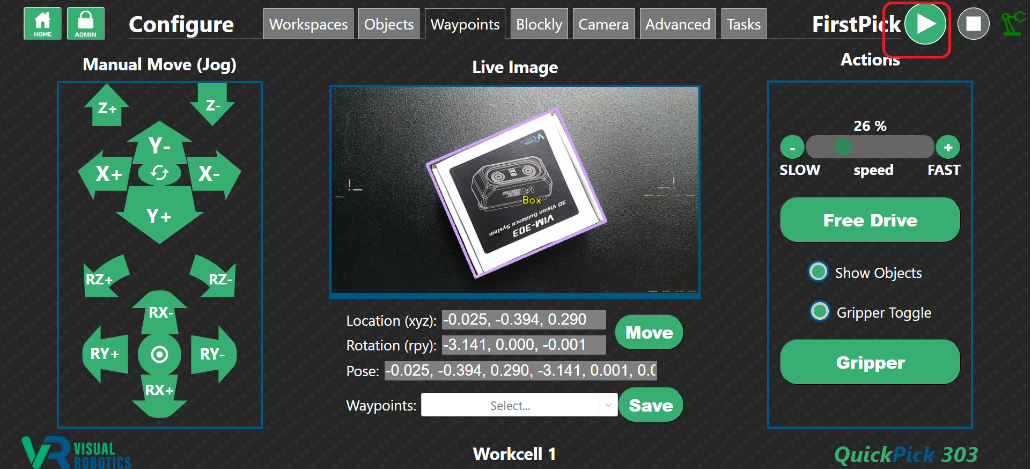
Figure 15: Press Start
There are other ways to run the program. The Play button shows up on any of the Configure tabs. Figure 16 shows the Blockly tab, which has a large Start button that can be used as well.
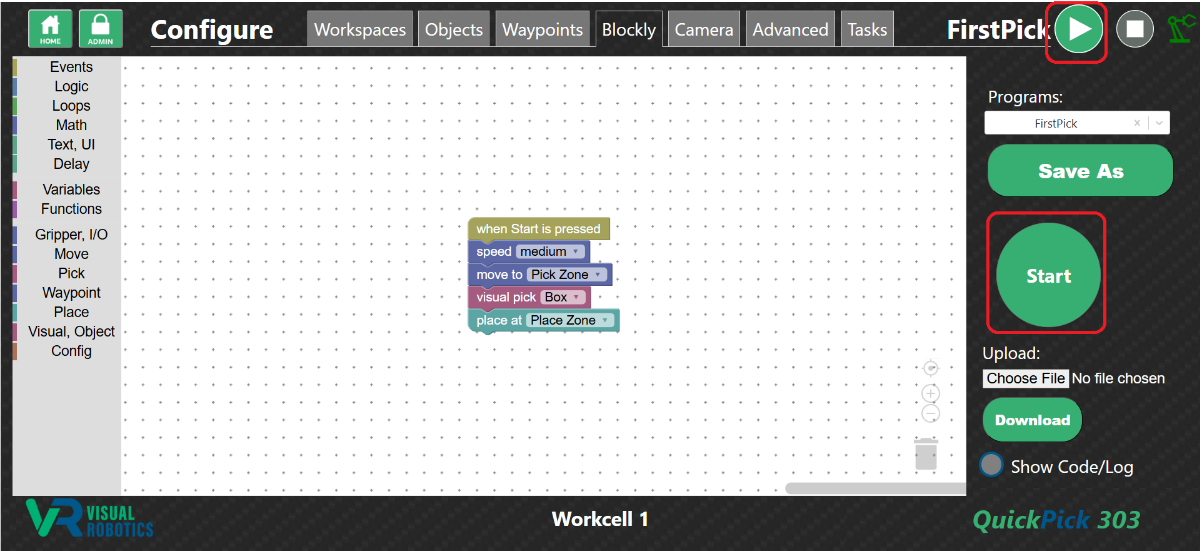
Figure 16: Running program from the Blockly tab
When a program is created, it is added to the Home menu (Figure 17). When the task button (“FirstPick”) is pressed, a large Play button appears, used to start the program.
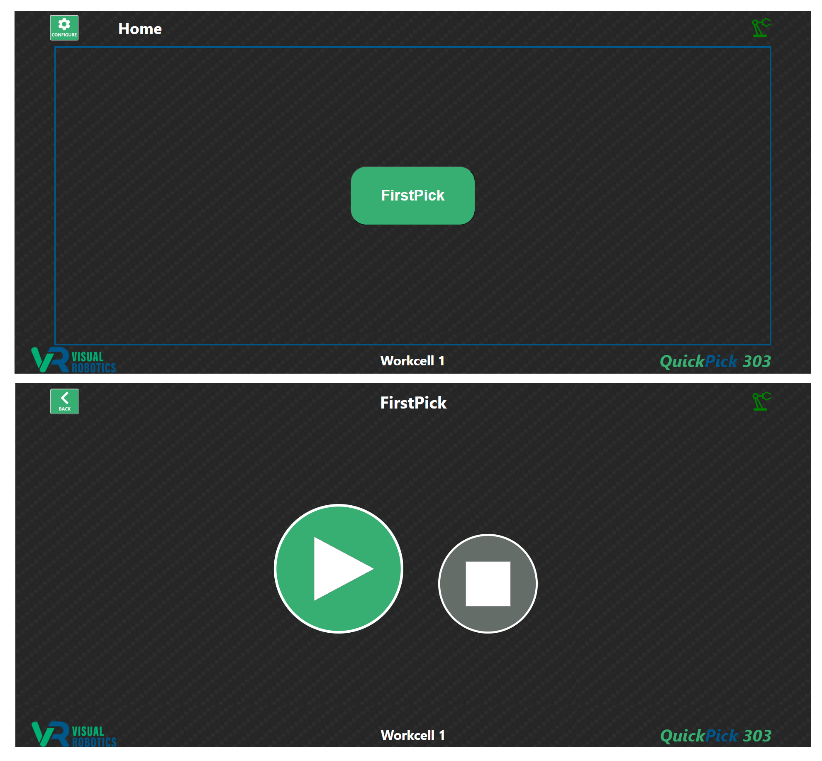
Figure 17: Running a program from the Home menu