Step 1 - Define Object
The first step is to define the object that VIM-303 is going to look for. In this case, it is the VIM-303 camera box. To do this, set the box on the table (Figure 1). Next you will move the robot so that the camera is looking at the box.
From the Task Menu, press the Configure gear to see the configuration menu and then select the Waypoints tab to jog the robot so the camera is looking straight down onto the box by pressing the buttons in the Manual Move section on the left (Figure 2). The camera needs to look straight down at the object. Pressing the bullseye button will aim the camera straight down. Choose a height about 450mm from the table surface to the bottom of the camera (Figure 1).
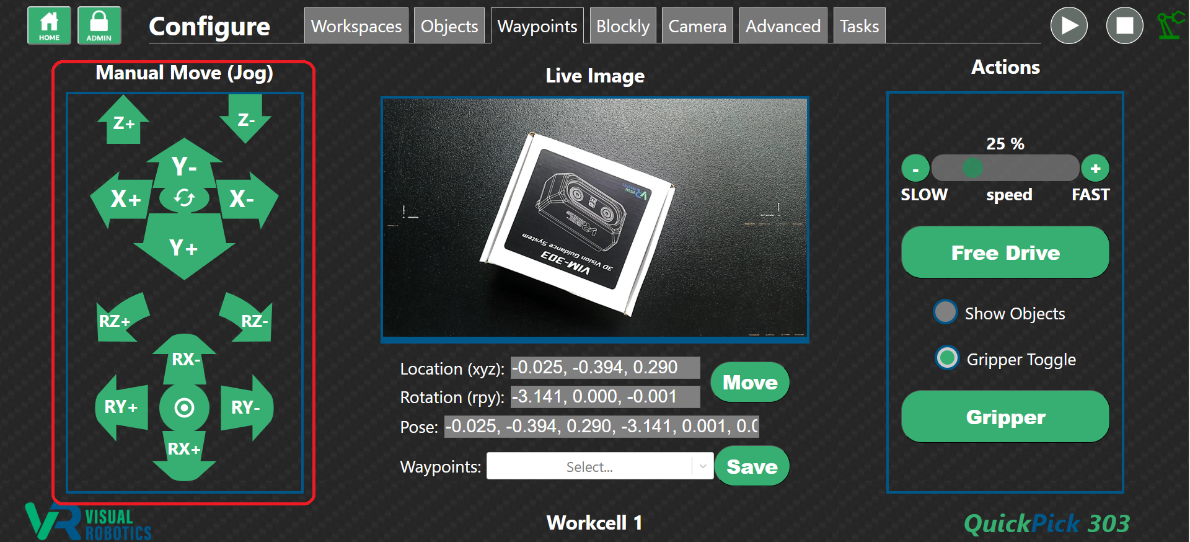
Figure 2: Waypoints Tab
Select the Objects tab (Figure 3) and set the Depth slider to 450mm. The camera should see the box as an Unknown object, outlined in purple.
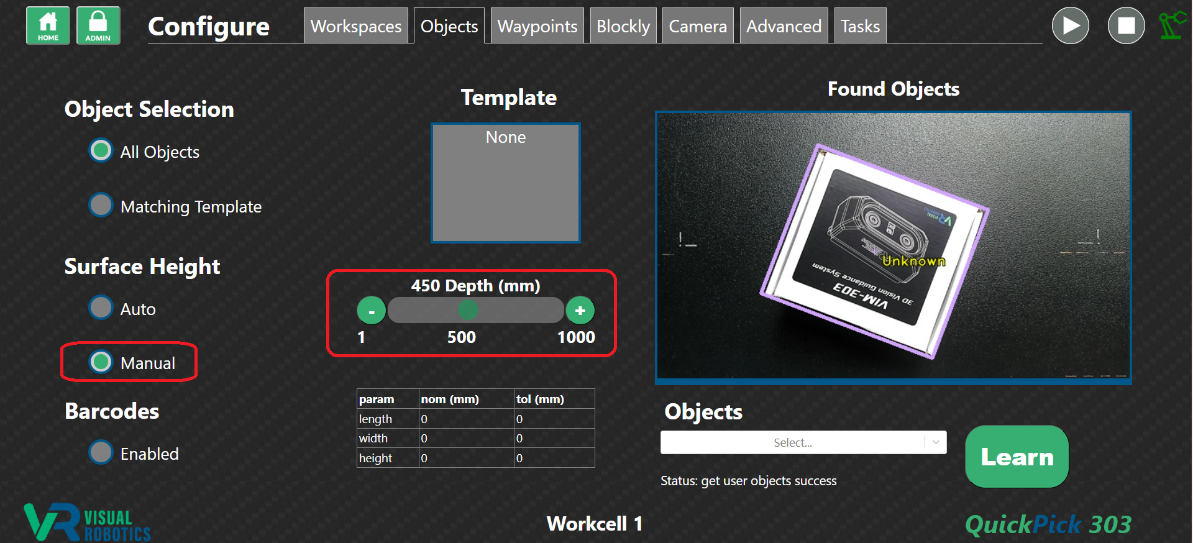
Figure 3: Objects Tab
In the Objects pulldown menu, start typing the name of the object Box (Figure 4) and press Enter. The object’s dimensions will be measured, and the object has been trained (Figure 5). The object is outlined in purple and says Box and the dimensions are shown in the User Object table.
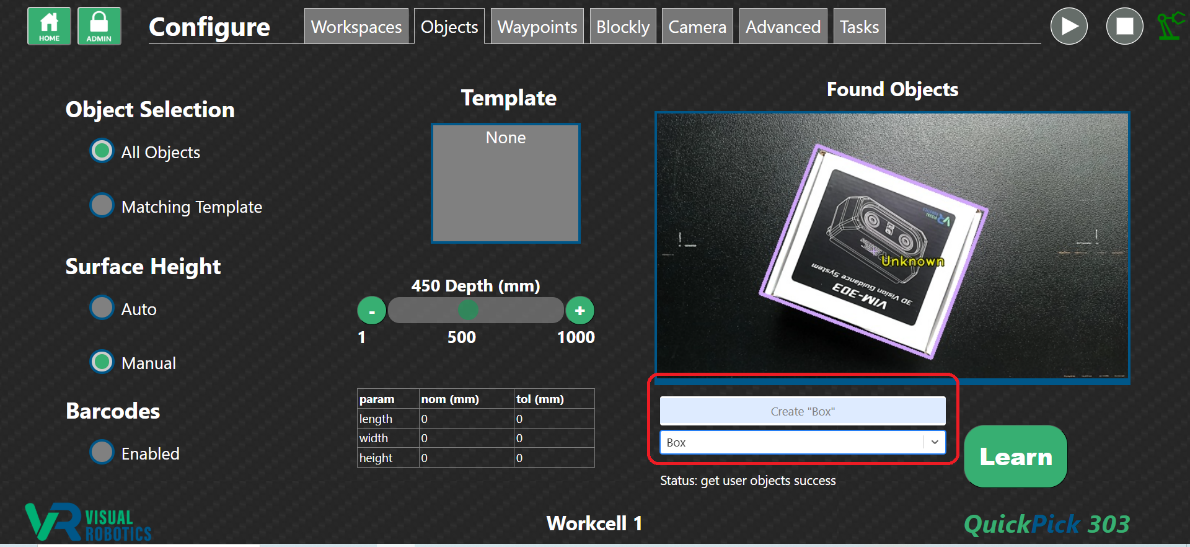
Figure 4: Name the object “Box”
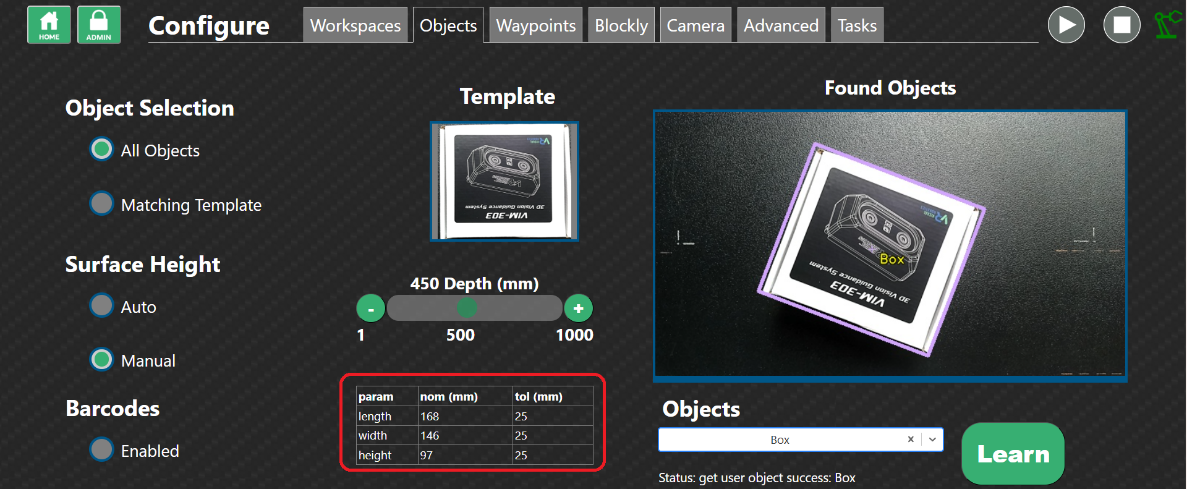
Figure 5: Object has been trained