Step 3 - Create Blockly Program
The last step is to create a Blockly program (Task) to tell the robot what to do. Our demonstration task is to pick up the box when viewed at the Pick Zone and place it at the Place Zone.
Press the Blockly Tab to see the Blockly programming environment (Figure 11).
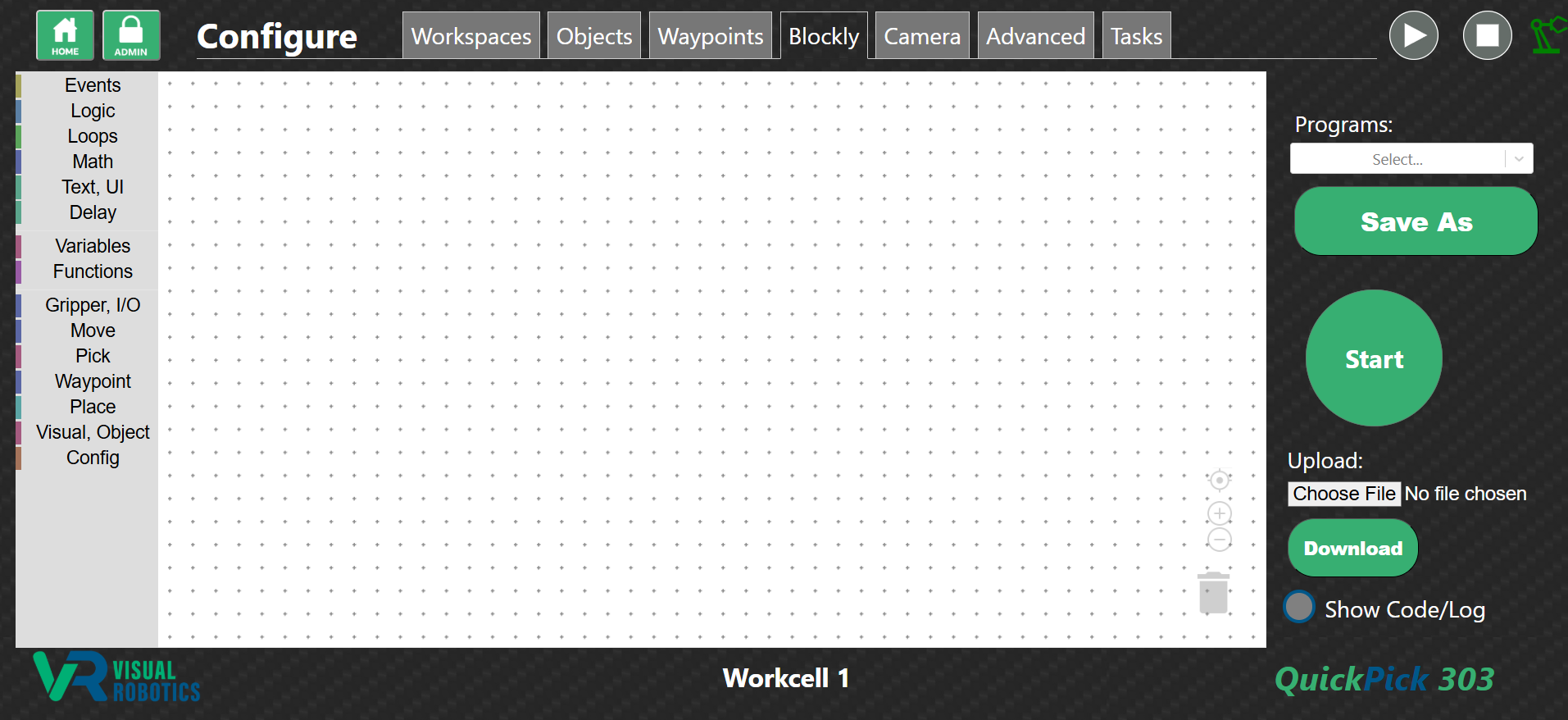
Figure 11: Blockly Tab
Using the pullout menus on the left, create the Blockly program as shown in Figure 12. Each type of block is color coded. The “when Start is pressed” block is in the Events category. The “move to Pick Zone” is in the Move category. The block starts out saying “move to nowhere” but simply click on the pulldown menu and select Pick Zone. The “visual pick Box” is in the Pick category and the “place at PlaceZone” is in the Place category.
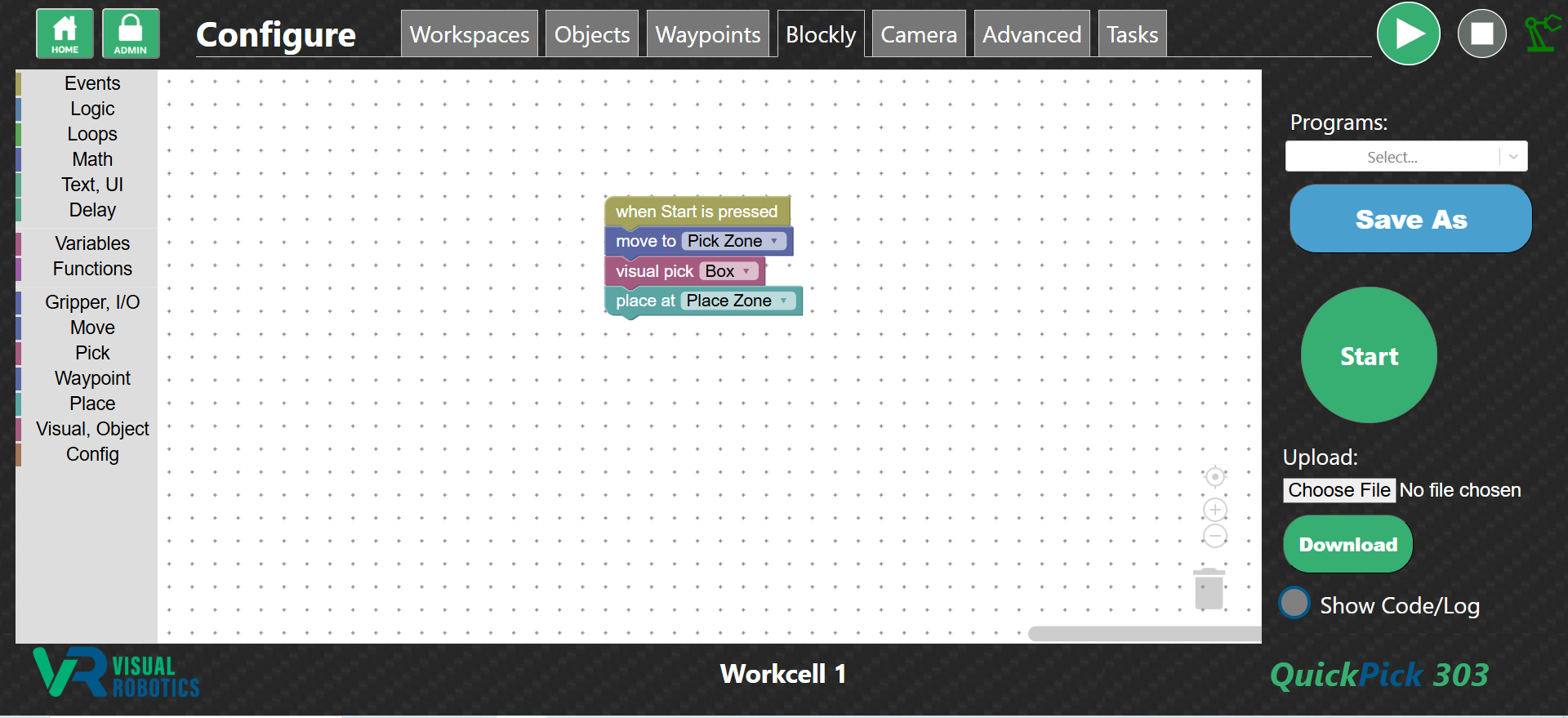
Figure 12: Blockly program for “FirstPick”
Press Save As and name your program FirstPick (Figure 13).
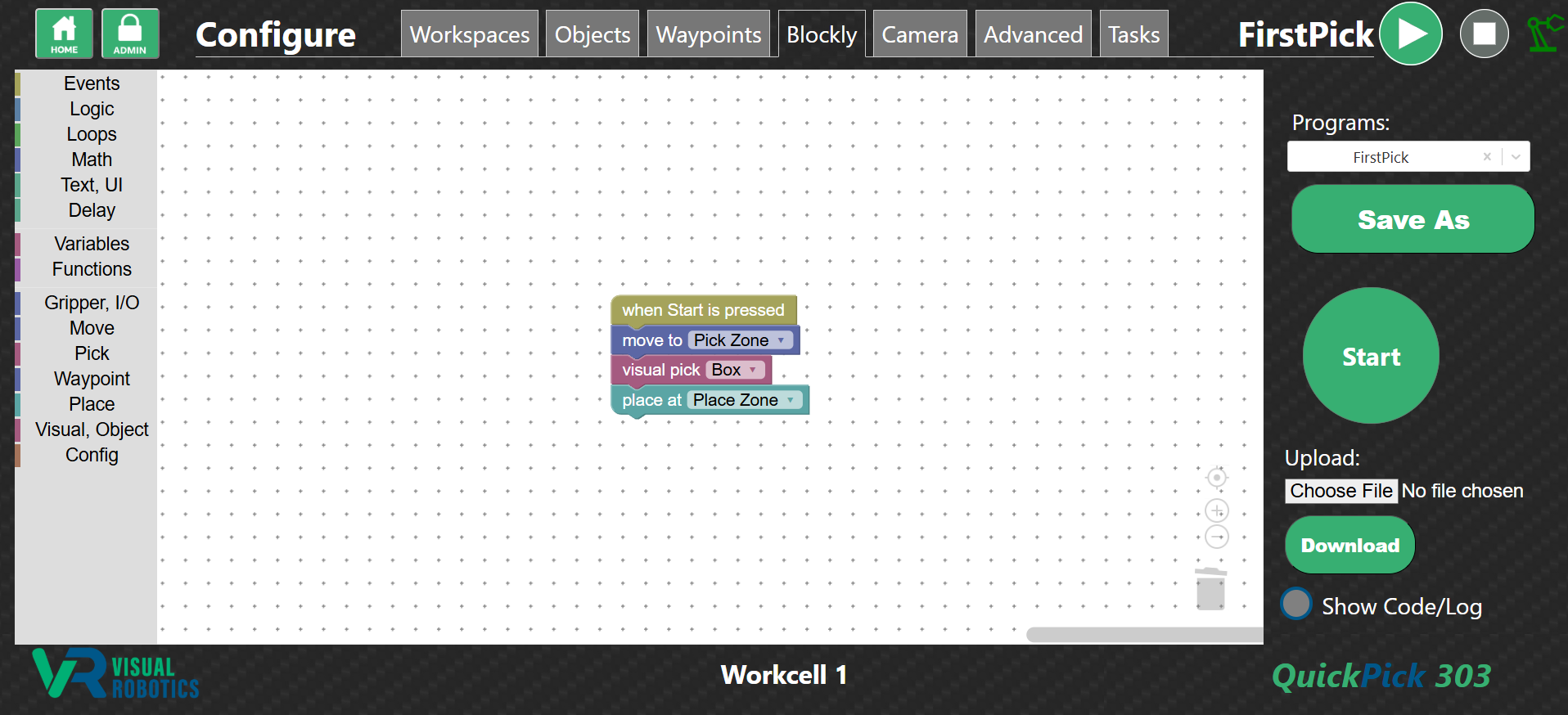
Figure 13: Blockly program named as “FirstPick”